Your child wants to play Minecraft online with their friends. You want to know exactly who is in there with them. This is how you get both.
A custom Minecraft world, built by describing it in plain English to Claude Code — an AI that does the technical work for you — running from a computer at home, where you hold the guest list. I am not a game developer and I never wrote a line of code. If you can type a sentence and click "approve", you can do this.
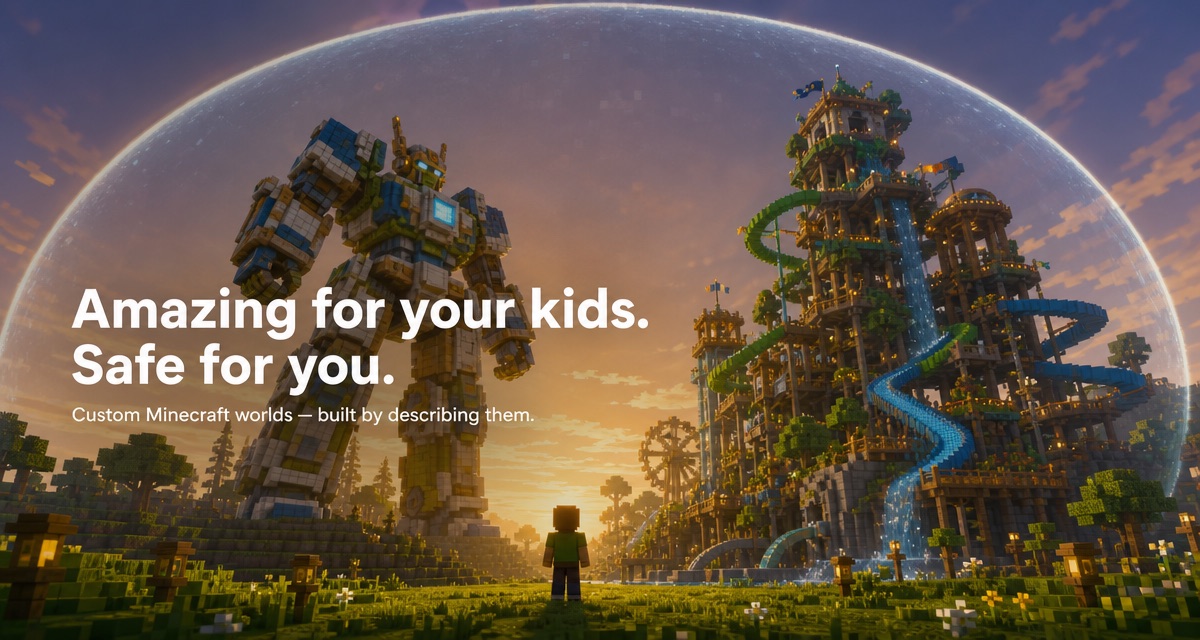
My kids asked for a waterpark. Twenty minutes later they were riding water slides sixty blocks down a tower, hitting targets for prizes. Before that, a giant robot they climb inside. I would never have had the time or the skill to build any of it by hand.
Claude Code is an AI you talk to in plain English. It can install software, set things up and build your Minecraft worlds — you just review and approve each step. Start at claude.com/claude-code and follow the install steps (or ask Claude to walk you through them).
You don't install or configure anything yourself. You ask, and Claude does the lot — the server software, the settings, the security. This is the properly technical part, and it's the part Claude removes entirely. Paste this:
Set up a private Minecraft Java server on this computer that my family can join over our home wifi. Keep it safe, and explain what you're doing as you go.Claude downloads and configures everything, then tells you how the kids join — usually by typing your computer's address into Minecraft's Multiplayer screen.
Now the fun part. Describe what you want; Claude builds it, tests it and shows you. Try:
Build a giant climbable robot with glowing eyes, standing on its own island.Build a waterpark: a tall tower with water slides you ride to the bottom, hitting targets for prizes on the way down.Ask for anything — a castle, a rollercoaster, a rainbow racetrack, a pirate ship. If your child can picture it, describe it.
On the same wifi, open Minecraft, go to Multiplayer → Add Server, enter the address Claude gives you, and join. That's it — you're inside your world. This works straight away with no internet setup at all.
When you're ready to let friends in, ask Claude to lock the world down first:
Make the world invite-only — only players I name can join. Log everyone who connects and everything said in chat so I can check afterwards.This switches on real logins (only genuine Minecraft accounts) and a whitelist — an invite list you control name by name. To add a friend before a playdate, just tell Claude their username:
Add my son's friend to the invite list — their Minecraft username is TommyMC2015.Nobody gets in that you didn't add. Even someone who somehow knew your address is refused at the door.
Console and tablet kids play a slightly different version of Minecraft (called Bedrock). Ask Claude to bridge them in:
Let my nephew's Xbox join the world too, safely, and tell me what he needs to do.Claude sets up a free translator so everyone shares the same world. Console friends join through a one-time "add this friend" step that you approve — a nice extra layer, since you're in the loop on every console child who connects. This is the fiddliest part of the whole thing; take it slowly and let Claude guide you through it.
Everything that happens is logged on your computer. You can ask any time:
Show me who joined and what was said in chat while the kids were playing.And the ultimate off-switch is just closing your laptop. No world runs when your computer is off.
One honest gap: no Minecraft setting covers voice chat. Kids often want to talk over Discord or similar while they play — that's a separate conversation to have with them, not something the server controls.
Anything they can picture. Here's a real world I made with my kids, all from plain-English requests:
No. You type requests in plain English and approve what Claude does. If something goes wrong, you tell Claude what happened and it fixes it. The whole point is that the technical work is lifted off you.
Safety rests on three locks: only real accounts can connect, a name-by-name invite list you control, and full logging of who joined and what was said — plus the off-switch of simply turning your computer off. No setup is magic, but this is the same layered approach used to secure grown-up systems.
There's no rented server — it runs on a computer you already own. You pay for Minecraft licences (computer players need a Java account; console and tablet kids already own it on their device) and a Claude subscription. That's it.
The worlds are genuinely large and immersive. Polished promo pictures aside, the real thing is blocky Minecraft — which is exactly what the kids are asking for.
A modest laptop handles a small family server fine. If it struggles, ask Claude to tune the settings for a lighter load.